Photos and videos together
Long clips are often the biggest storage users. Review them in the same calm flow as photos and screenshots.
 PicTok
Free up iPhone storage
A full iPhone often comes down to thousands of small decisions hiding inside Photos. PicTok turns that backlog into a focused review flow, so you can reclaim space while keeping control of every memory.
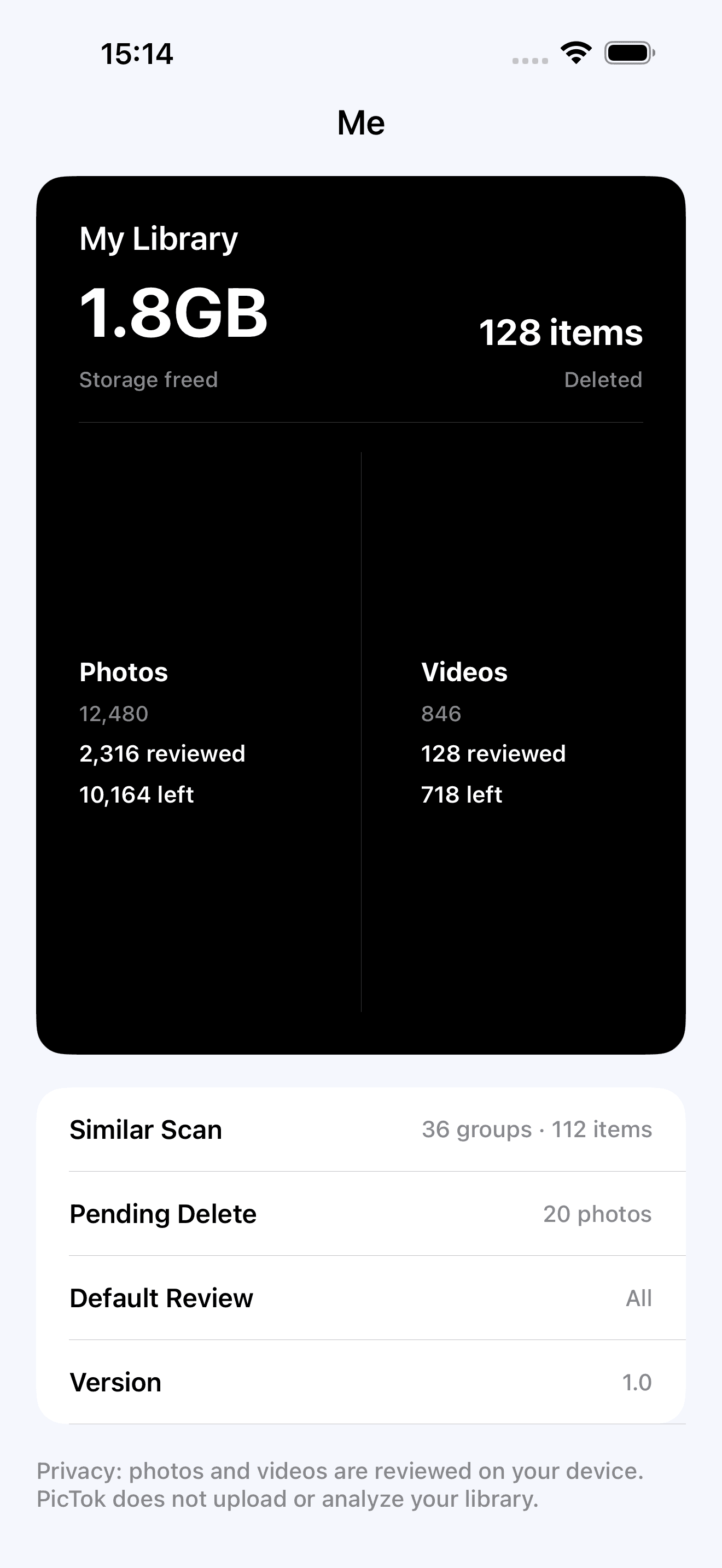
Why this approach works
One-tap cleaners can make a big promise without giving enough context. PicTok takes the opposite approach: browse real photos and videos, place unwanted items in a review basket, check the batch, and then use Apple's own confirmation to delete it.
Long clips are often the biggest storage users. Review them in the same calm flow as photos and screenshots.
Nothing is sent for deletion until you inspect the complete batch and decide it is ready.
Your photo library is processed on your iPhone. PicTok does not upload it to our servers.
A practical workflow
Open PicTok and review a few minutes at a time instead of trying to clean years of photos in one sitting.
Pay special attention to long videos, repeated screen recordings, screenshots, and bursts you no longer need.
Open the basket, inspect the selected items, and remove anything you want to keep before confirming with iOS.
PicTok does not pretend that every old photo is clutter. A slightly blurry frame may still be the one you love. That is why the app keeps you in the decision loop and gives you visual context instead of auto-deleting a library in the background.
After deletion, Apple Photos normally keeps items in Recently Deleted for the recovery period provided by iOS. That extra safety net is useful, but the best habit is still to review the PicTok basket carefully before you confirm.
If you use iCloud Photos, cleanup can sync across devices signed into the same library. Check your Apple settings and make sure important originals are backed up before a large cleanup session.
Common questions
No. You choose the items, review the batch, and confirm the deletion through Apple's system dialog.
Yes. Photos and videos appear in the same review flow, making it easier to spot clips that consume substantial storage.
No. PicTok does not upload or analyze your photos and videos on our servers.
Private photo cleanup for iPhone and iPad