Begin with low-risk clutter
Old screenshots, accidental pocket shots, and obsolete screen recordings are easier decisions than family photos.
 PicTok
A free, privacy-first cleanup guide
The safest way to clean up iPhone photos is not a one-tap purge. Start with free, built-in Apple Photos tools, remove obvious clutter in small batches, and keep a recovery path. PicTok adds a focused swipe flow when a crowded camera roll becomes hard to review.
Why this approach works
Cleaning out iPhone photos should reduce noise so meaningful pictures and videos become easier to find. It does not require deleting thousands of items in one pass. Begin with screenshots, screen recordings, accidental shots, and unwanted large videos, then review harder decisions later.
Old screenshots, accidental pocket shots, and obsolete screen recordings are easier decisions than family photos.
A smaller basket is easier to inspect carefully and easier to recover from if you change your mind.
Check iCloud and backup settings before a major cleanup, especially when multiple devices share one library.
A practical workflow
Understand whether iCloud Photos will sync deletions to other devices, and make sure important originals exist somewhere you trust.
Start in Apple Photos with screenshots, screen recordings, unwanted videos, and repeated takes. Use PicTok's free daily allowance when you prefer a focused swipe flow.
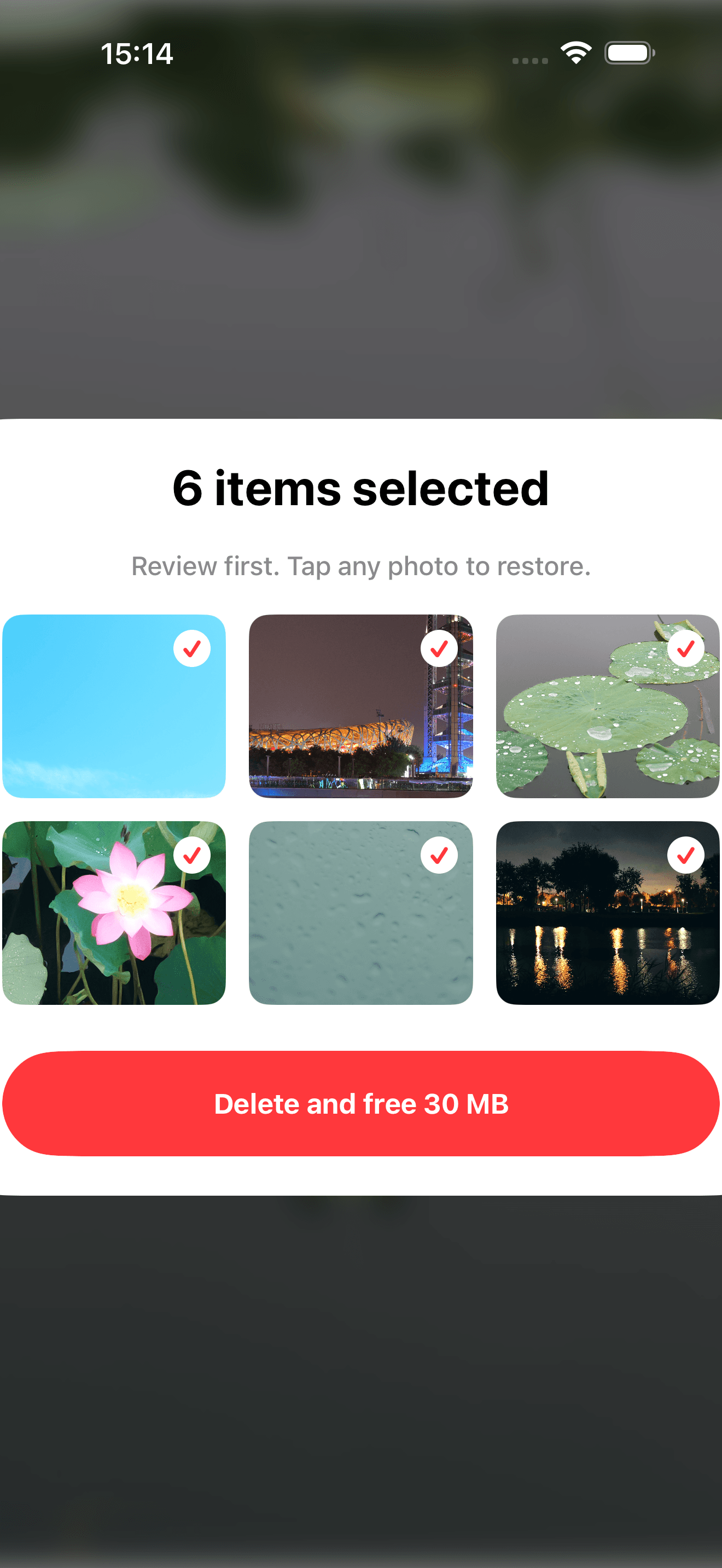
Inspect every selected item before deletion, then keep Apple's Recently Deleted recovery window until you are confident nothing important is missing.
You can begin for free in Apple Photos: review Screenshots, Videos, Screen Recordings, Bursts, and other visible categories, then remove only the items you recognize as clutter. PicTok is also free to start and adds a full-screen review flow with a daily allowance.
Try a short weekly review instead of waiting for an iPhone storage warning. A small routine prevents clutter from becoming a large backlog and makes each session easier to finish.
Use visual similarity as a prompt to compare, not an instruction to delete. The best frame is personal: one image may be sharper while another captures a better expression or a more meaningful detail.
Deleting a photo may not immediately free all of its space because Apple Photos keeps deleted items in Recently Deleted for a recovery period. Do not rush to empty it: check the batch first, especially when iCloud Photos syncs the same library across devices.
Keep privacy in mind when choosing an iPhone photo cleaner. Understand whether it uploads images, requires an account, includes tracking tools, or performs analysis locally. PicTok is built around on-device review and requires no account.
Common questions
Start with the categories available in Apple Photos, such as screenshots, videos, and screen recordings. PicTok is also free to start with a daily review and deletion allowance.
Start with obvious, low-risk items such as obsolete screenshots, accidental photos, old screen recordings, and unwanted large videos.
Deleted items can remain in Apple Photos' Recently Deleted album during the recovery period. Check iPhone Storage and your Photos settings before permanently removing anything.
If iCloud Photos is enabled, library changes can sync across devices. Review your Apple settings before a large cleanup.
A short weekly or monthly session is usually easier and safer than a large annual purge.
Private photo cleanup for iPhone and iPad